Friday, October 9, 2009

How to Create Microsoft Windows XP Backup?

Backing up the data means saving the important files at a place where they are safe and secure and can be restored later when some data mishap occurs. Taking the backup is a golden rule for data safety followed by almost every computer user for whom data has prime value. Microsoft provides its Windows users with a backup utility called NTBackup that comes in-built with Windows versions. It was first initiated with the Windows NT version. Now it comes connected with Windows 2000, 2003, XP and also Vista. The files saved in NTBackup are called BKF files.

If you are using Microsoft Windows XP or any other Windows version, then all you need to do is to use Microsoft backup utility for Windows XP and backup data on a regular basis in order to avoid panic at the time of data disasters. Microsoft Windows XP backup utility is a great tool to take away your data loss fear. Backing up of important documents, emails etc proves advantageous when you lose those files from their original locations on the computer. No matter you lose the data from the system, your distress will nullify if you have backed up all the crucial files.

How to create backup?
Creating Microsoft Windows XP backup is not something intricate or difficult. You can create it by following some simple steps and without needing any extra backup software.
• Go to Start > All Programs > Accessories > System Tools > Backup. You will see the ‘Backup and Restore Wizard’ window
• Click ‘Next’. You will be asked the operation you want to perform
• Select ‘Back up files and settings’ option for creating Microsoft backup for Windows XP data files. For backups already taken, you can select ‘Restore files and settings’ option to restore any backup
• Click ‘Next’. What to Back up screen will display. You can select the files you want to backup. Select the required files and folders and then again click ‘Next’.
• A window to select the saving location of these files will be displayed. Select any destination you want to save these files and click the ‘Next’ button.
• The finishing window of the backup process will be displayed. Click ‘Finish’ to complete the Microsoft Windows XP backup process. There are also advanced backup options which can be done by clicking the ‘Advanced’ button. Type of backup can be chosen from: Normal, Copy, Incremental, Differential and Daily. Select the type of backup you want to create and click Next.
• Finally, the wizard will start creating the backup of required files and folders.

Is this backup 100% safe?
Even after you have backed up all the important data files, there are still chances of data corruption of those backup files. Though a slim chance but due to some avoidable reasons, even these files can damage. But, again there is no need to panic because Windows XP backup repair software can easily bring back the data from the backup files, provided you choose the right, reliable and result-oriented tool. SysTools BKF Repair software is a Microsoft Windows XP backup recovery tool that can easily, quickly and successfully restore Windows XP backup data.

In short, there are safety measures in the form of backups to protect your data, and if that protected data damages then there are further safety measures in the form of backup recovery software to revive the previously protected data.

Backup File Not Restoring – VSS error

NTBackup tool is the backup utility present in the Widows Operating System versions based on the NT version. These are 2000, 2003 and XP. Earlier Vista did not support NTBackup but now Microsoft has decided to make this NTBackup tool available to Windows Vista users also. Backups are important, backups are crucial and taking backup is the safest way to protect your significant data. NTBackup allows the users to save their important data files. These files are saved in MTF file format having .bkf extension and are also called BKF (Backup File).

Sometimes while performing the restoration of the BKF file in NTBackup, user can face some error that can curb the backup file restoration process and can lead to BKF corruption. For example, when you try to restore data from a BKF file on the domain controller (a server that has Active Directory service installed) running Windows Server 2003, you may come across the below VSS error message:
“Backup Status
Operation: Backup
Active backup destination: File
Media name: "bkup_file.bkf created MM/DD/YYYY at HH:MM AM|PM"
NTDS has reported a VSS error 0x800423f0...”

After the above error message appears, restoration process stops leading to BKF damage and then you need a backup recovery software tool to repair backup PC data.

The VSS, Volume Shadow Copy server, is different in the 32-bit versions and the 64-bit versions of Windows Operating System. A BKF file uses different catalogs even if it is created using the 32-bit VSS interface and needs a 32-bit VSS based backup tool for the process of restoration. Now, if you make an attempt to restore that BKF file with a 64-bit Windows version then the catalogs can corrupt and make BKF file inaccessible. Now, proper restoration in Windows Server 2003 happens only when the Operating System, the database and the log files are all on same disk volume or on different storage drives. But the above VSS error issue generally occurs when one volume (Log or DIT) is on the system drive. It results in BKF corruption and so the BKF file restoration process fails. A restore hard drive backup software tool to access and extract the data from these corrupt BKF files is the only option left with you.

The BKF file will not restore after such error message comes. So, to resolve the issue and to get an access to your data saved in the corrupted BKF file, you need to repair it by using an advanced and powerful backup recovery software tool. Such backup restore tools use high-end scanning algorithms to scan and repair corrupt BKF files.

SysTools BKF Repair software tool is
• A very simple and intuitive product that will help you reinstate the required data information from the corrupted BKF files of any size.
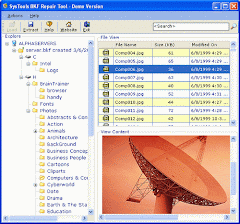
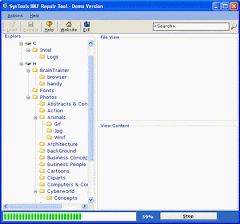
• This easy to understand application has highly graphical and interactive interface.
• You can first use the Demo version which is FREE to evaluate. It gives the preview of some recovered files.
• The search option is available for you. Using the search option you can see the number of files of different extensions being recovered. Extensions supported by BKF Repair preview are TXT, INI, XML, CONFIG, RTF, H, C, PHP, CPP, JSP, ASPX, ASP, CS, VB, IDL, JAVA, CSS, HTML, HTM, HTA, LOG, JS, PNG, ICO, INF, GIF, JPG and BMP. You can search the number of files of a particular extension by typing the extension in the search box.
• If you feel that all the files or most of your corrupted files have been recovered, then you can purchase the Full version of SysTools BKF Repair software to extract and save the recovered files.

In short, if you try the restore option in the NTBackup and get a VSS error leading to BKF file corruption. There is no need to panic. SysTools BKF Repair tool will help you get the data back.

Backup Corruption Due to Archive Bit Deletion

In the Windows file system, users are given the file backup utility (NTBackup) and they can take the backup of their important files and store them safely here. This backup files (BKF) are stored in MTF file format and have .bkf extension. Now, in this Windows file backup utility, the ‘archive bit’ enables the user to determine the files and folders stored formerly in the backup. This information of the archive bit changes every time a complete backup is performed by the file backup program of the computer.

Why backup files corrupt?
Problem occurs when this archive bit gets corrupted. The reasons behind this corruption can be many like software malfunction, file system corruption and more of these unpredictable causes. When any such thing happens and archive bit gets corrupted, it leads to backup file (BKF) damage and users are found complaining that their backup utility has reported an error while saving file. This data becomes inaccessible and can only be accessed is the user gets an advanced restoring backup file restore tool.

A common situation
In your data backup utility tool, NTBackup.exe there is an accidental deletion of the archive bit information during a backup data process. Further, if you select the backup file for restoration and go to ‘Advanced’ properties, you see that the checkbox “File is ready for archiving” is not checked. After archive bit deletion, you will not be able to restore data from the BKF files by using NTBackup.exe. The major cause behind the occurrence of such a situation is the selection of ‘Verify data after backup completes’ under the ‘Options’ dialog box.

How to prevent the situation?
To prevent any such thing from happening in the first place, you should avoid selecting the option of ‘Verify data after backup completes’ under the ‘Options’ dialog box.

How to restore BKF data after corruption?
If archive bit is corrupted leading to BKF damage, you can’t revert it. Then, you can use Microsoft recommended hotfix solution. After applying the hotfix, you have to restart the system. But, if you are still not successful then the only viable option left with you is to use a good BKF file repair software tool. These backup recovery software tools incorporate high-end algorithms for scanning the files and repair the corrupted BKF files. SysTools BKF Repair tool is an advanced software and highly reliable tool for backup data recovery.

Whether the archive bit problem arises in Vista file backup utility or Windows XP file backup utility or in any other Windows version, SysTools BKF Repair can help in a simple and intuitive manner.

NTBackup Not Supported After Upgradation to Vista – Orphan Backup Files Can Be Recovered

Microsoft Windows is undoubtedly a great Operating System (OS). Great in understanding, great in comprehending, great in using and last but not the least great in protecting users’ data. It gives its users a backup utility tool which is in-built in Windows Operating System versions: 98, 2000, XP and 2003. This is in fact the best way to backup computer files.

But, a problem arises when a user upgrades his system from any of the Windows versions (98, 2000, XP and 2003) to Windows Vista. As Vista does not support the NTBackup tool, so all the backup files on computer (the files that have .bkf extension and so are called BKF files also) stored earlier in the backup utility (NTBackup) become orphaned. They are termed orphaned because they become devoid of their existing place and after upgradation to Vista, they don’t have any specific location. Backup data files are highly important for any user and no one can lose it at any cost.

This problem can be solved by using a third party software utility product that can read the orphan BKF files, extract them and finally save them to a proper location. Fortunately in such a situation we don’t need to panic and curse Microsoft but use SysTools BKF Repair software which is a brilliant tool that can successfully execute these functions and finally save the backup data from getting perished is SysTools BKF Repair software. If you want to retrieve, recovery, retain and regain your backup files computer data, then this SysTools software tool will act as a BKF reader for you and will extract all the backup files that you had originally saved in the NTBackup before the upgradation of your OS to Windows Vista.

Use the windows search for locating .bkf files. Then if you have BKF files on the Vista machine even though Vista doesn't support NTBackup, using SysTools BKF Repair software, you can extract the data within those BKF files. So, even if you have upgraded your system to Windows Vista where NTBackup is not supported, then also there is no need to worry. Orphan backup files can be recovered using SysTools BKF Repair software.